

New
Every Playlab app starts private. Only you and your organization’s Owners can see it until you share it, add it to a space or collection, or publish it. Apps you build inside a space are also visible to that space’s Owners and Managers. This page explains who can see what, why org Owners have access, and how to move from private to shared.
Who can see your app
Yellow blocks see the app from creation. The rest open up only after you share, add, or publish.
For details on publishing and visibility levels, see Publishing your app.
Filtering your app list. The Apps page has three tabs: My apps (every app you created, in any organization), Org apps (apps in the organization you’re viewing that you can open, whether built there or shared into it), and Shared with me (apps someone shared with you by name from outside your organizations). On Org apps, the Owner filter narrows the list to apps Built in my org or Shared with my org. They only ever surface apps you already have permission to see. See Finding apps in Navigating Playlab.
Going from private to shared
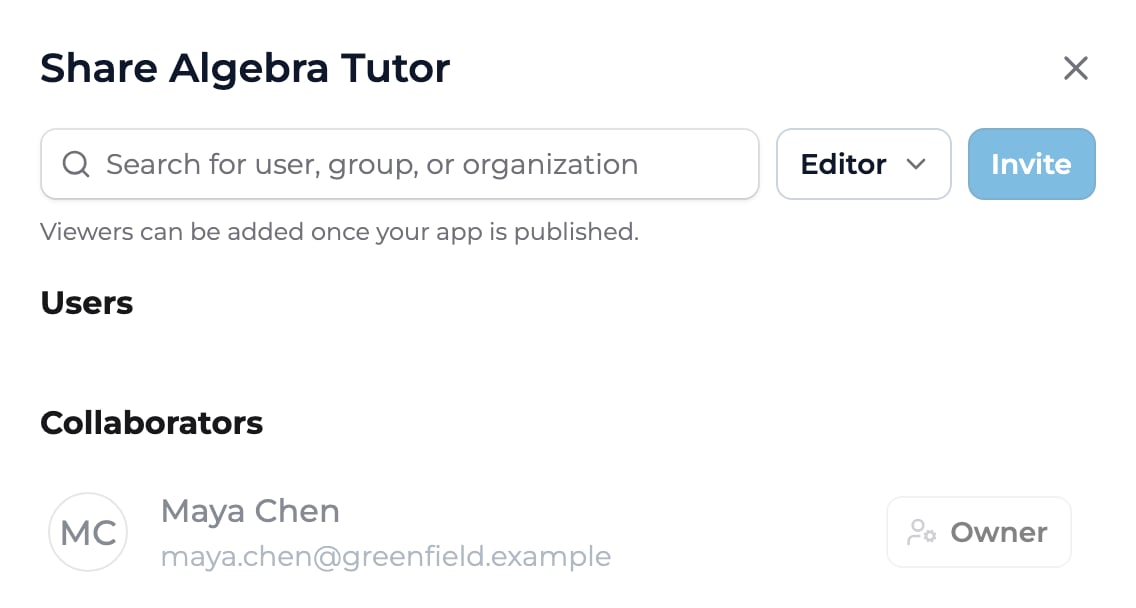
The Share dialog. While an app is unpublished, you can add collaborators here, but Users can only be added once you click Publish in the builder.
Why org Owners have access to your app
Org Owners automatically get Owner access to every app built in their organization. Playlab does this for trust and safety: if a session in any app is flagged, an Owner needs to be able to find the session, the app it came from, and the people involved. Your app shows up in their Org apps list. They aren’t notified when you create or edit it.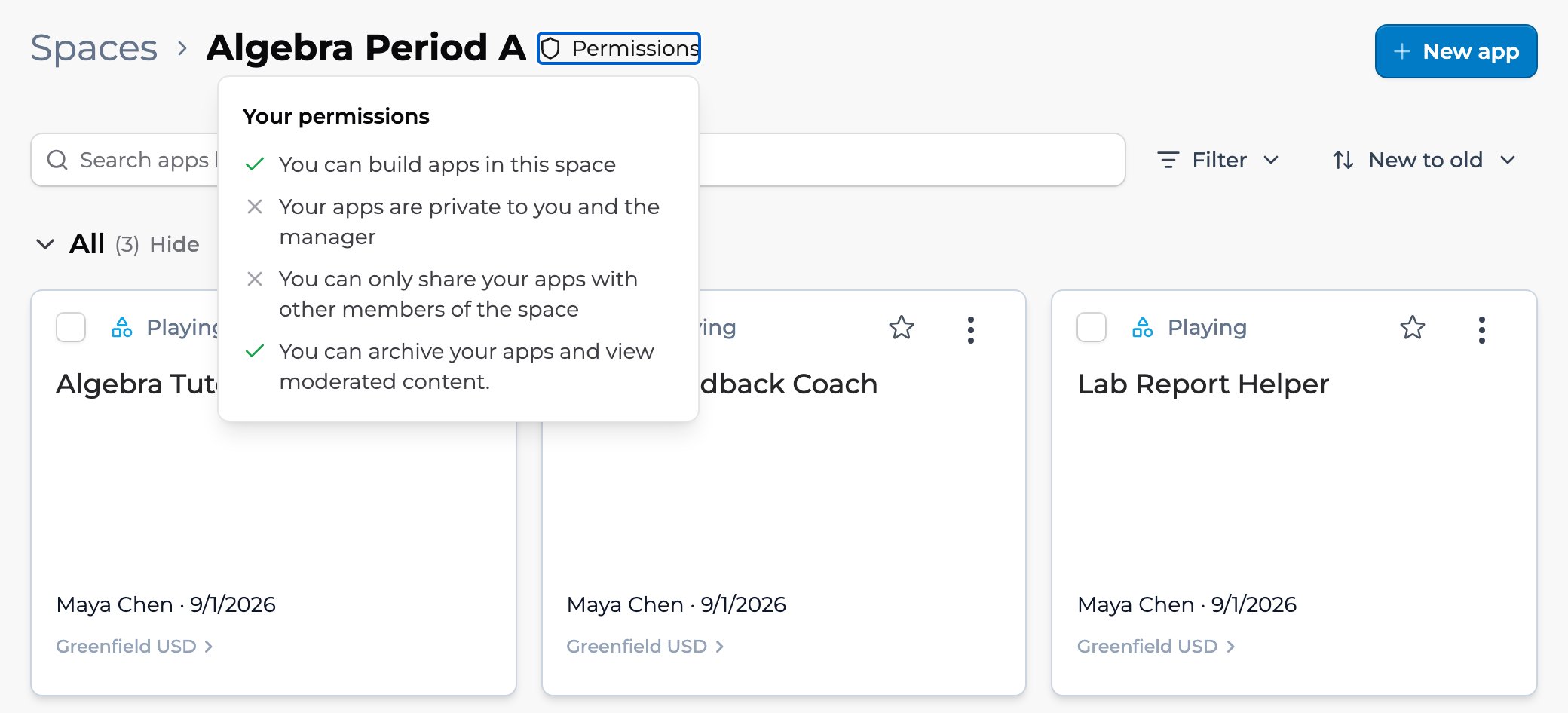
A space's Apps page with the Permissions panel open. Each member sees what they can build, share, and manage in this space.
Key points
- New apps start private to you and your org’s Owners
- Sharing is an explicit action: Owner, Editor, User, or add to a space or collection
- Org Owners have Owner access to every app built in their organization
FAQ
Can I see who has accessed my app?
Can I see who has accessed my app?
Yes. The app’s Sessions tab lists sessions with who used it and when. It shows people who share an organization with you, plus logged-out sessions. See Reviewing session activity.
Does private mean no one but me can find it through search?
Does private mean no one but me can find it through search?
Not quite. An unpublished app shows up in search and app lists only for people who already have access: you, your org’s Owners, people you’ve added in Share, and members of any space or collection you’ve added it to. Space and collection members can see its card but can’t launch it until you publish.
Can I download a list of who has access to my app?
Can I download a list of who has access to my app?
Not as a download. Click Share to see who you’ve shared it with: people with the User role under Users, and Editors and Owners under Collaborators. People who reach the app through a space, a collection, or the general audience aren’t listed there.
If I delete an app, what happens to people who had access?
If I delete an app, what happens to people who had access?
Playlab archives apps rather than deleting them: an app Owner chooses Archive App from the menu (⋮) next to the app’s name in the builder. Archiving unpublishes the app and removes it from spaces and app lists, so links to it stop working. People keep their past sessions in History, but can’t start new ones.
Does setting an app private remove existing conversations?
Does setting an app private remove existing conversations?
No. Unpublishing the app or changing its general audience doesn’t delete any sessions. People keep their past sessions in History.
Last updated: 10-14-2026 Contact us at [email protected]